Dashboard
Dashboard
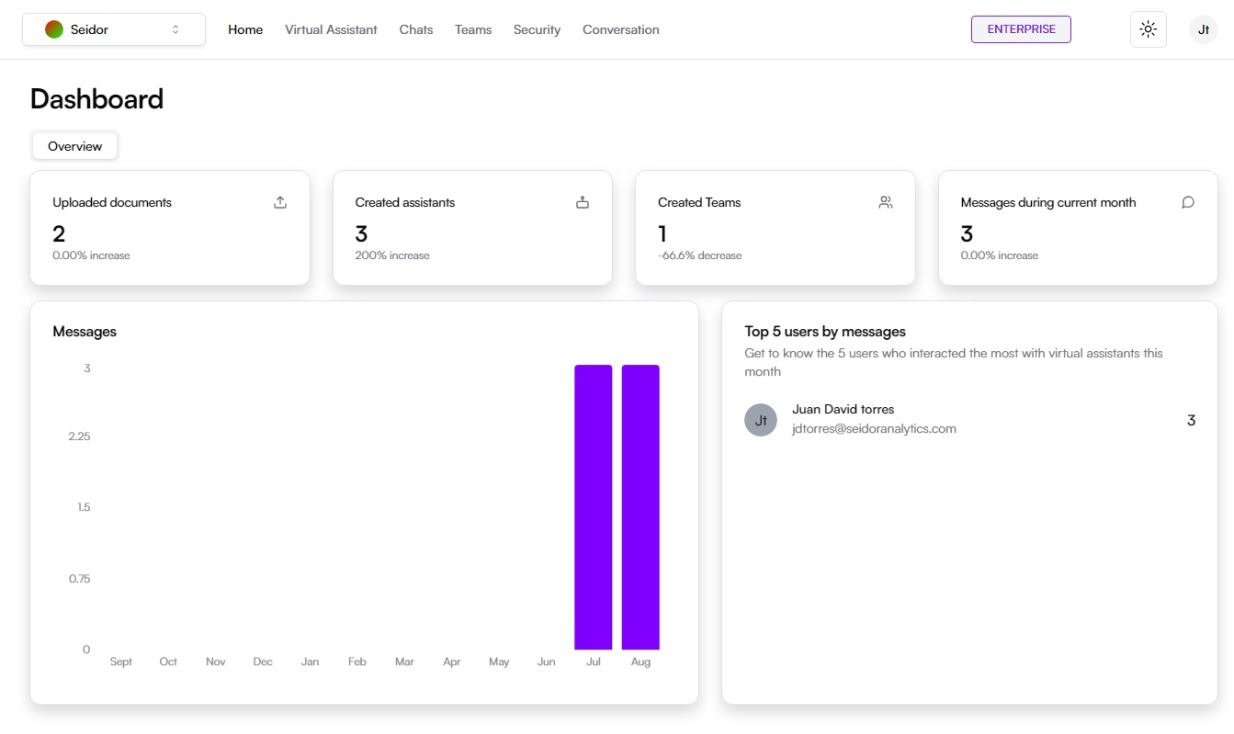
The Dashboard is the main screen providing a summary and analytical view of the activity and data managed on the platform. It is designed to offer a quick and clear overview of the status of documents, virtual assistants, teams, and received messages.
Screen Components
1) Top Navigation Bar:
- Tenant: Identification of the Tenant associated with the logged-in user.
- Navigation Menu: Includes the Home, Virtual Assistants, Chats, Teams, Security, and Conversations sections.
- Plan Indicator: Shows the user's current plan (e.g., Enterprise).
- Theme Icon: Access to platform theme types (e.g., Dark).
- User Profile: Access to profile settings and user options.
2) Summary Section:
- Uploaded Documents: Shows the total number of uploaded documents and a link to access recent documents.
- Created Assistants: Indicates the number of virtual assistants created on the platform.
- Created Teams: Presents the number of created teams.
- Total Messages Received: Indicates the total number of messages received in the system.
3) Messages Chart:
- Monthly Messages: Bar chart showing the number of messages received per month, offering a visual perspective of communication activity.
4) Top 5 Users by Messages:
- Active Users List: Shows the five users who have interacted most with virtual assistants in the current month, along with their email addresses and the number of interactions.
Procedures and Functionalities
1) Access the Dashboard:
After logging into the Daiana platform, the user will be automatically directed to the Dashboard.
2) Navigation in the Dashboard:
Use the top navigation bar to move between different sections and functions of the platform.
3) Review Uploaded Documents:
In the “Uploaded documents” section, click the documents icon to access the list of recently uploaded and managed documents.
4) Create and Manage Virtual Assistants:
Consult the “Created assistants” section to view existing assistants. To create new assistants, navigate to the “Virtual Assistants” section from the navigation bar.
5) Manage Teams:
In the “Created teams” section, you can view a summary of existing teams. To manage teams, go to the “Teams” section in the navigation bar.
6) Monitor Message Activity:
The messages chart provides a monthly view of received message activity.
7) Identify Active Users:
The “Top 5 users by messages” list allows you to quickly identify the most active users and their interaction levels with virtual assistants.