Conversations
Conversations
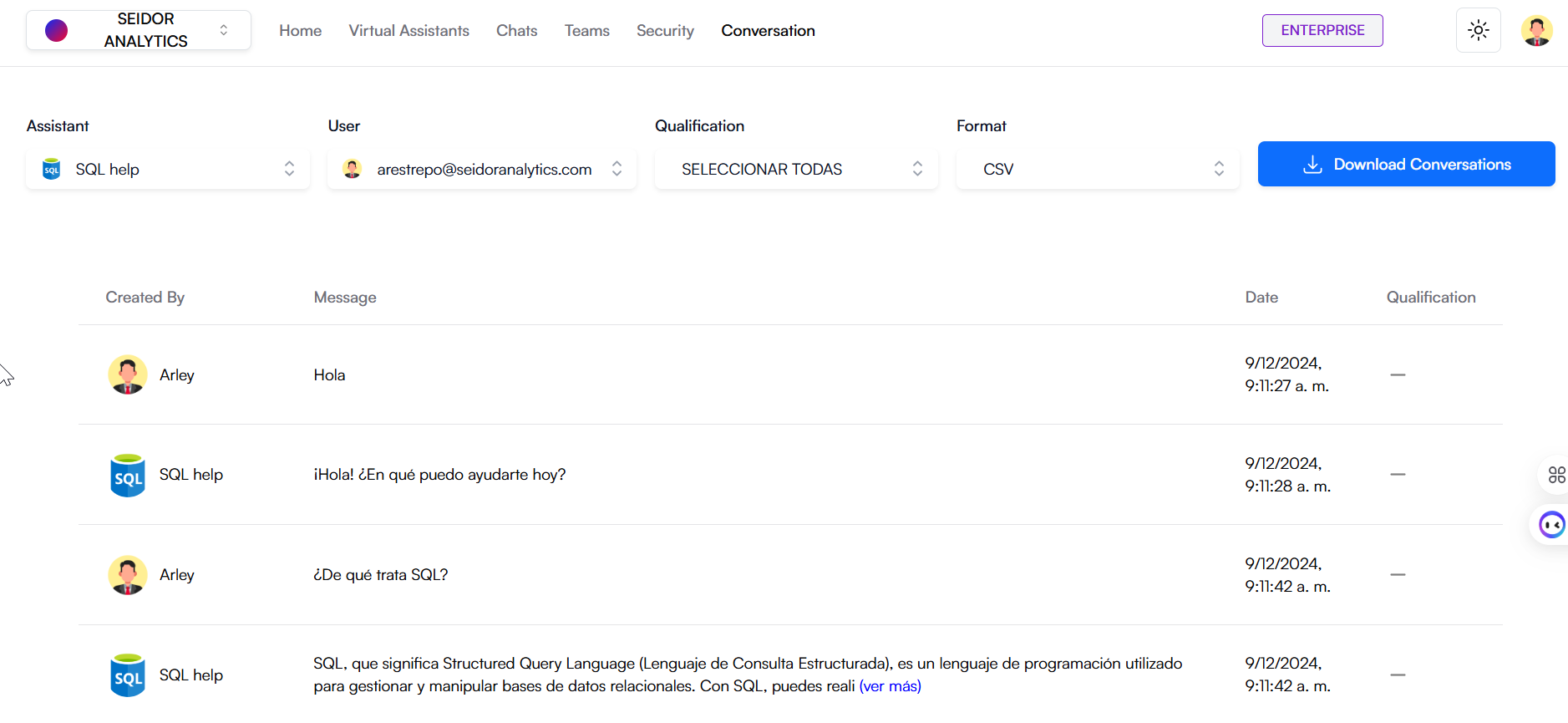
The Conversations screen in Daiana allows users to review and manage interactions made with virtual assistants. Here you can view the message history between a specific user and a virtual assistant, providing a detailed view of conversations and their context.
Screen Components
1) Top Navigation Bar:
- Tenant: Identification of the Tenant associated with the logged-in user.
- Navigation Menu: Includes the Home, Virtual Assistants, Chats, Teams, Security, and Conversations sections.
- Plan Indicator: Shows the user's current plan (e.g., Enterprise).
- Theme Icon: Access to platform theme types (e.g., Dark).
- User Profile: Access to profile settings and user options.
2) Selections:
- Selected Assistant: Dropdown allowing selection of the virtual assistant whose conversation you wish to review.
- Selected User: Dropdown allowing selection of the specific user whose interactions you wish to review.
- Selected Rating: Dropdown allowing selection of the rating given to responses.
- Selected Format: Dropdown allowing selection of the format to download conversations.
3) Conversation History:
Columns:
- Created By: Indicates who sent the message, can be the virtual assistant or the user.
- Message: Content of the sent message.
- Date: Date and time the message was sent.
- Rating: Option to rate the usefulness of the assistant's response (if enabled).
Procedures and Functionalities
1) Select a Virtual Assistant:
- Use the dropdown under “Selected Assistant” to choose the virtual assistant whose conversations you wish to review.
2) Select a User:
- Use the dropdown under “Selected User” to choose the specific user whose interactions you wish to review.
3) Select a Rating:
- Use the dropdown under “Selected Rating” to choose the rating whose conversations you wish to review.
4) Select a Format:
- Use the dropdown under “Selected Format” to choose the format to download conversations.
5) Review Conversation History:
- After selecting filters, the conversation history will be displayed in the table below.
- You can scroll through the message list to view all interactions, including content, sender, and time.
6) View More Information:
- To get more details about a specific message, click “view more” if available, to expand the message and view additional information.
7) Rate Responses:
- If the rating function is enabled, you can rate the usefulness of the assistant's responses in the rating column.
8) Download Conversations:
- Use the dropdown under “Selected Format” to choose the format to download conversations.
- Click the button that says “Download Conversations” to download conversations in the previously selected format.