Profile
Profile
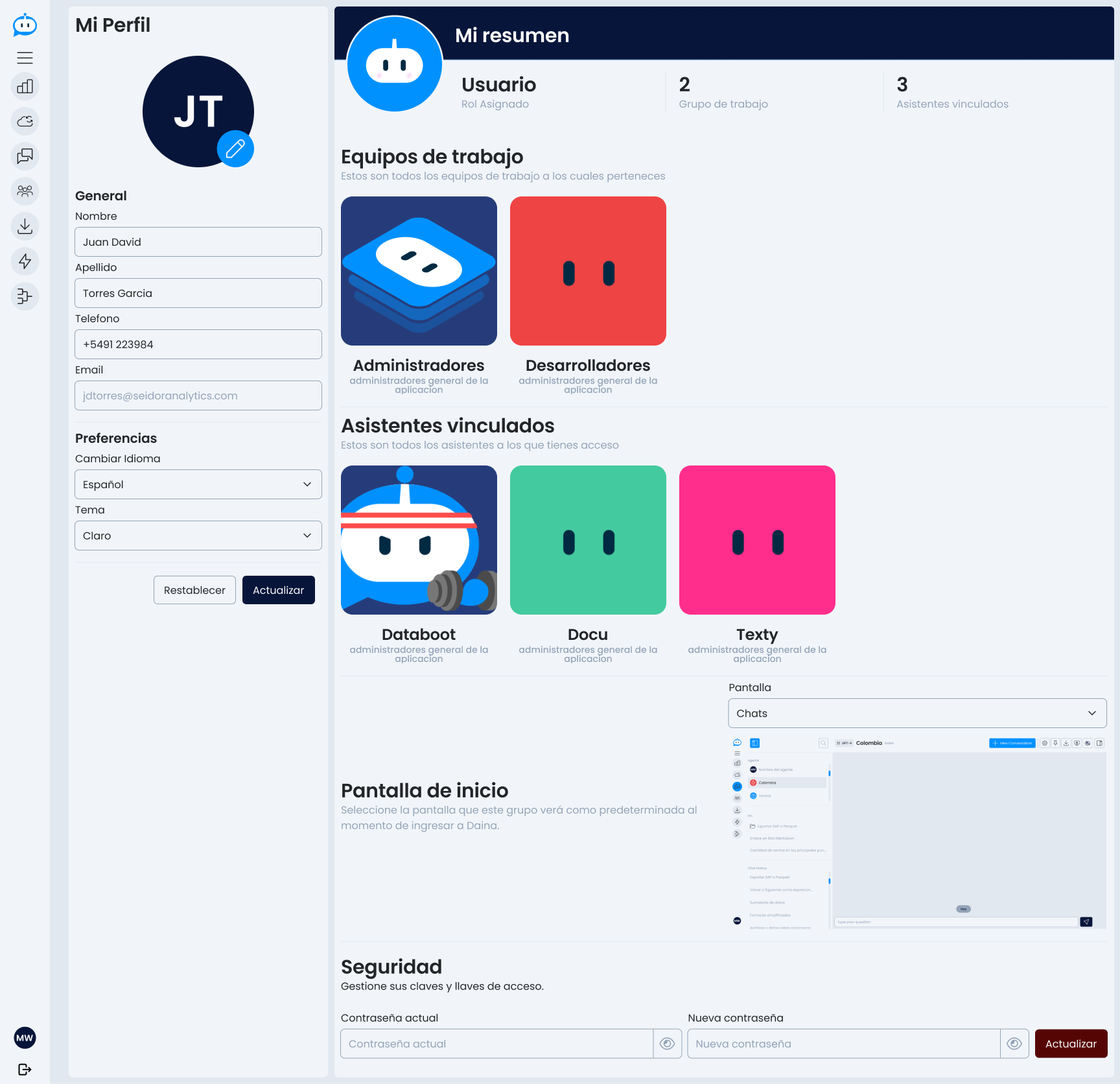
The Profile section allows each user to personalize their experience in Daiana and manage personal data easily and securely.
General Information
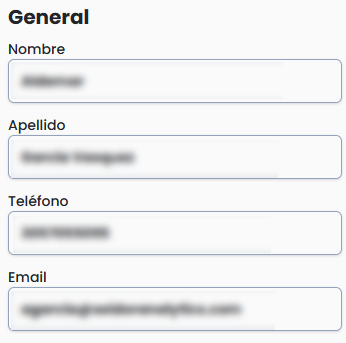
The left column contains the form to modify the following data:
- Name
- Last Name
- Phone
After making modifications, it is necessary to press the "Update" button to save the changes.
Preferences

Within the same side panel, you can customize the platform's user experience:
- Change language: select the interface language from the available options (e.g., Spanish or English).
- Change theme: switch between light or dark mode according to your visual preference.
My Summary

The central part displays an informative summary of the user:
- Assigned Role
- Number of work groups
- Number of linked assistants
Work Teams
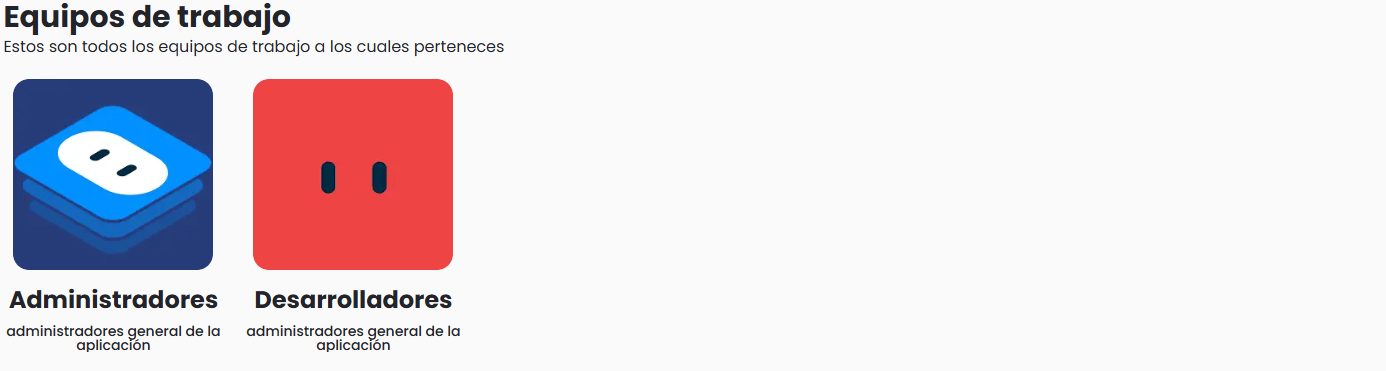
View all the teams you belong to. Each team is represented by a card with its name, identifying color, and description.
Linked Assistants
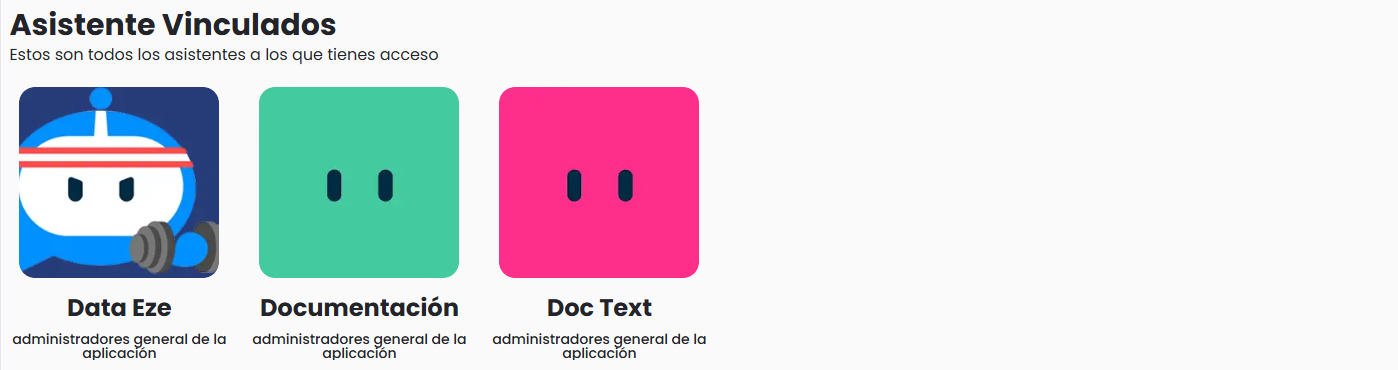
A list of agents to which the user has access is displayed. Each assistant includes:
- Custom image or avatar
- Agent name
- Corresponding administrator group
Home Screen
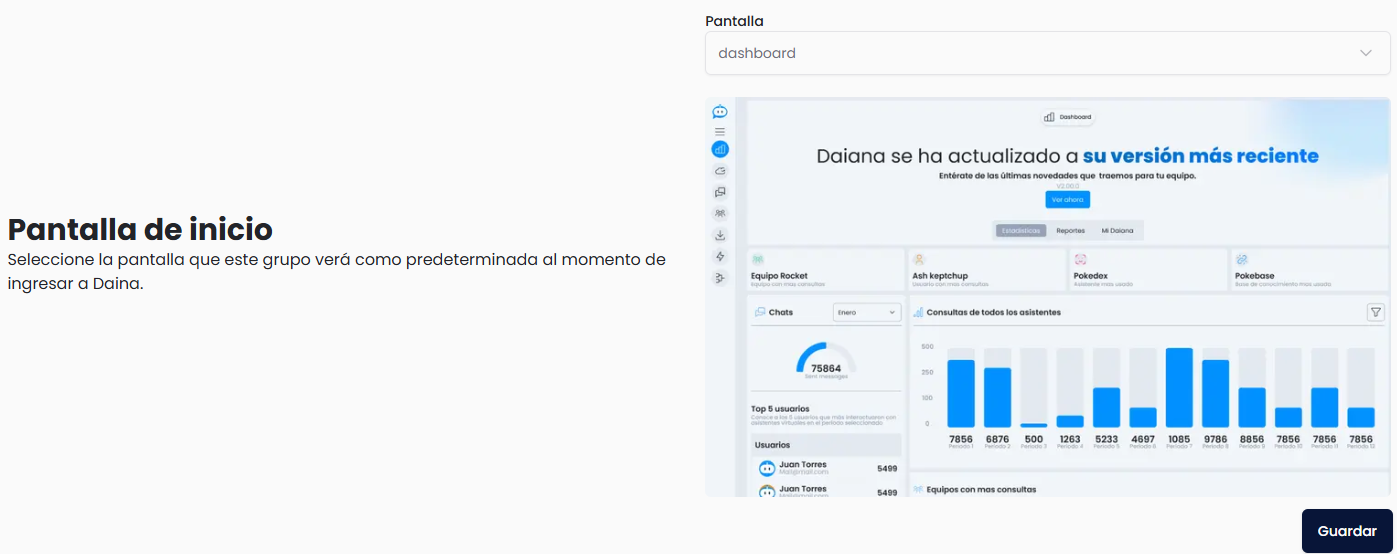
The user can choose which will be the default screen upon entering Daiana (e.g., Dashboard, Agent, Knowledge Base, etc.).
Once selected, press "Save" for the configuration to take effect.
Security

In this section, you can update your password:
- Enter your current password
- Type your new password
- Confirm the changes by clicking "Update"
This section ensures that each user has full control over their profile and environment within the platform.