Users
Users

The Users section allows you to manage all registered accounts on the platform. From here, you can view, edit, delete, or invite new users, as well as manage their roles and access.
User View
A list with the following information is displayed:

- Name
- Phone
- Role (Custom, Admin, User, or Pending Invitation)
- Available Actions (edit or delete)
Users with a pending invitation will appear marked as "Invitation sent" in the roles column.
Actions
By clicking on the pencil icon, you can edit the following fields:

- Name
- User Role (Owner, Admin, User, Custom)
- Phone number
- Password
You can also delete a user from the system if they should no longer have access.
Add Users
To add a new user:
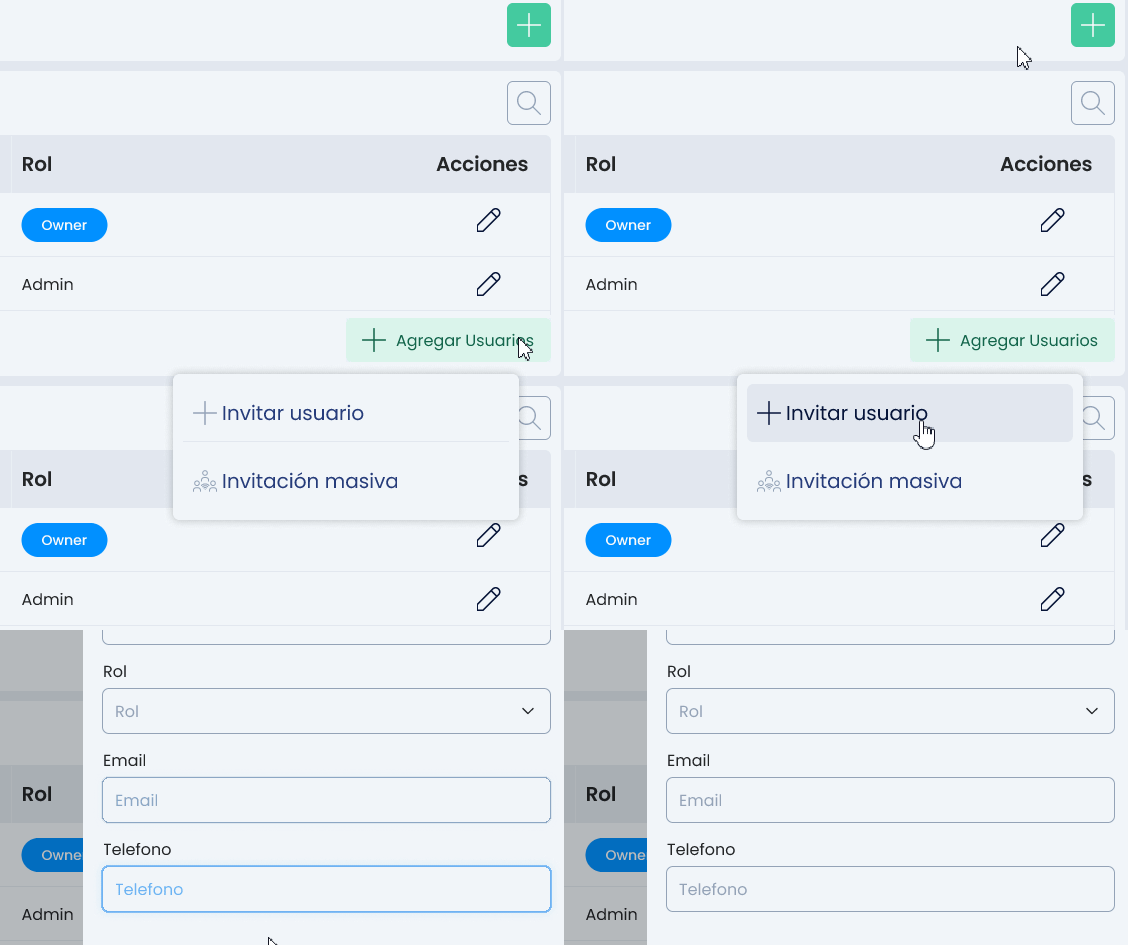
- Click the "+" button in the top right corner.
- A modal will appear where you can choose between a simple invitation for a single user or a bulk invitation.
Invite User
- Fill in the requested data.
- Once the account is created, it will be created with the indicated email, but it will not be added to any group, which is why you may not see any assistants.
Bulk Invitation
You can invite people to join your team by entering their email addresses below or by uploading a CSV file with their information. They will receive an email invitation to join the team.
- Bulk
- Upload File
- Add by List
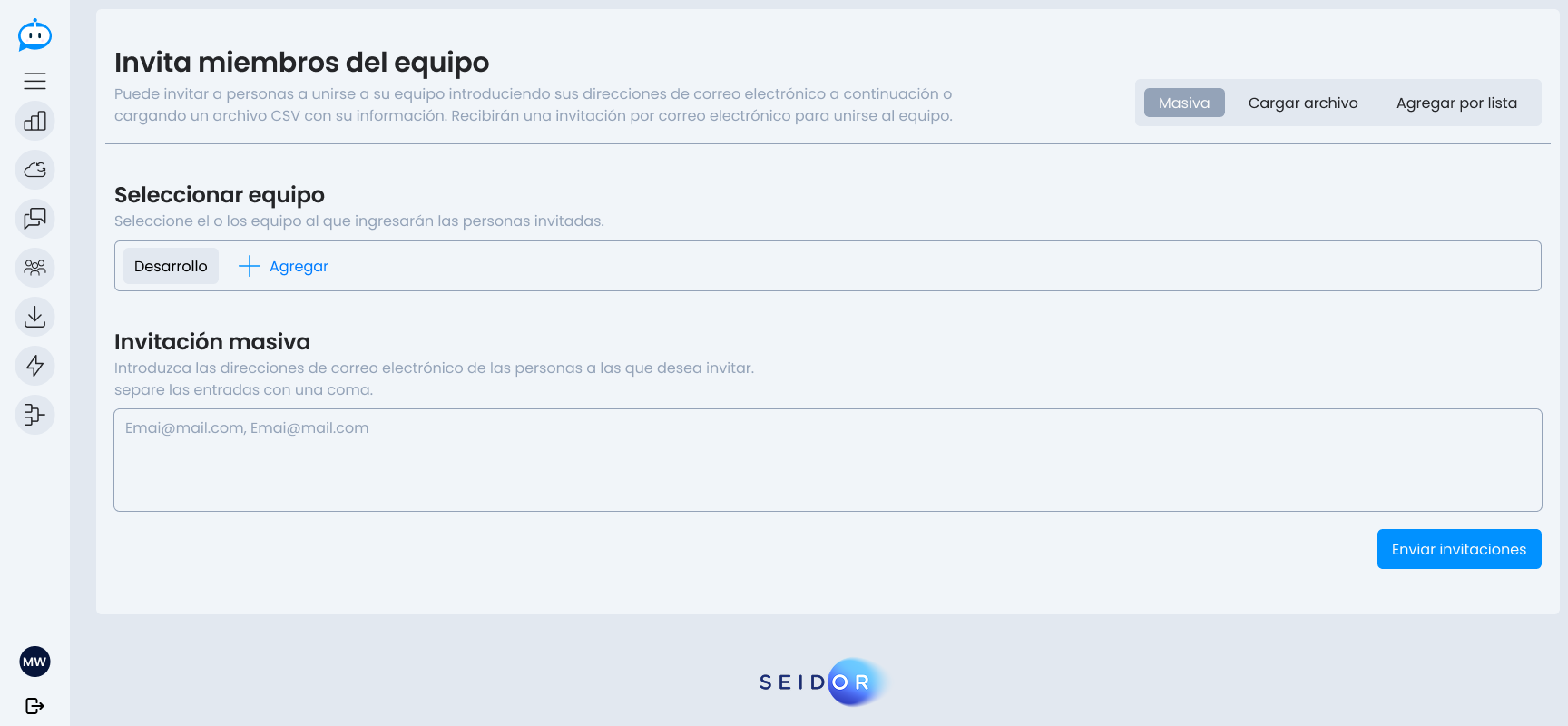
- Select the team(s) the invited people will join.
- Enter the email addresses of the people you want to invite, separate entries with a comma.
Selecting this option allows you to upload a .csv or .xlsx file where a single upload will send invitations to all users in the file.
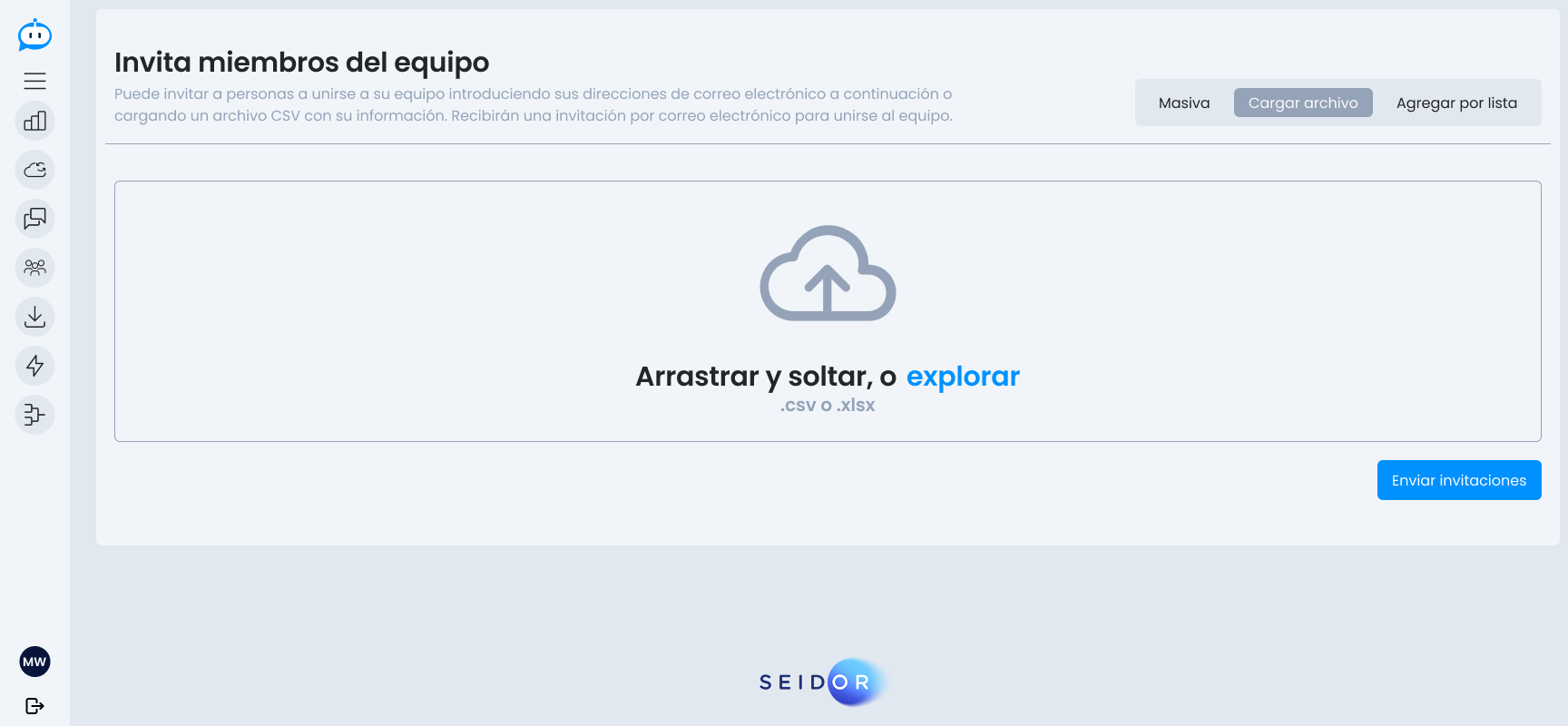
If you wish, here you can find sample formats for this type of upload:
- csv
- xlsx
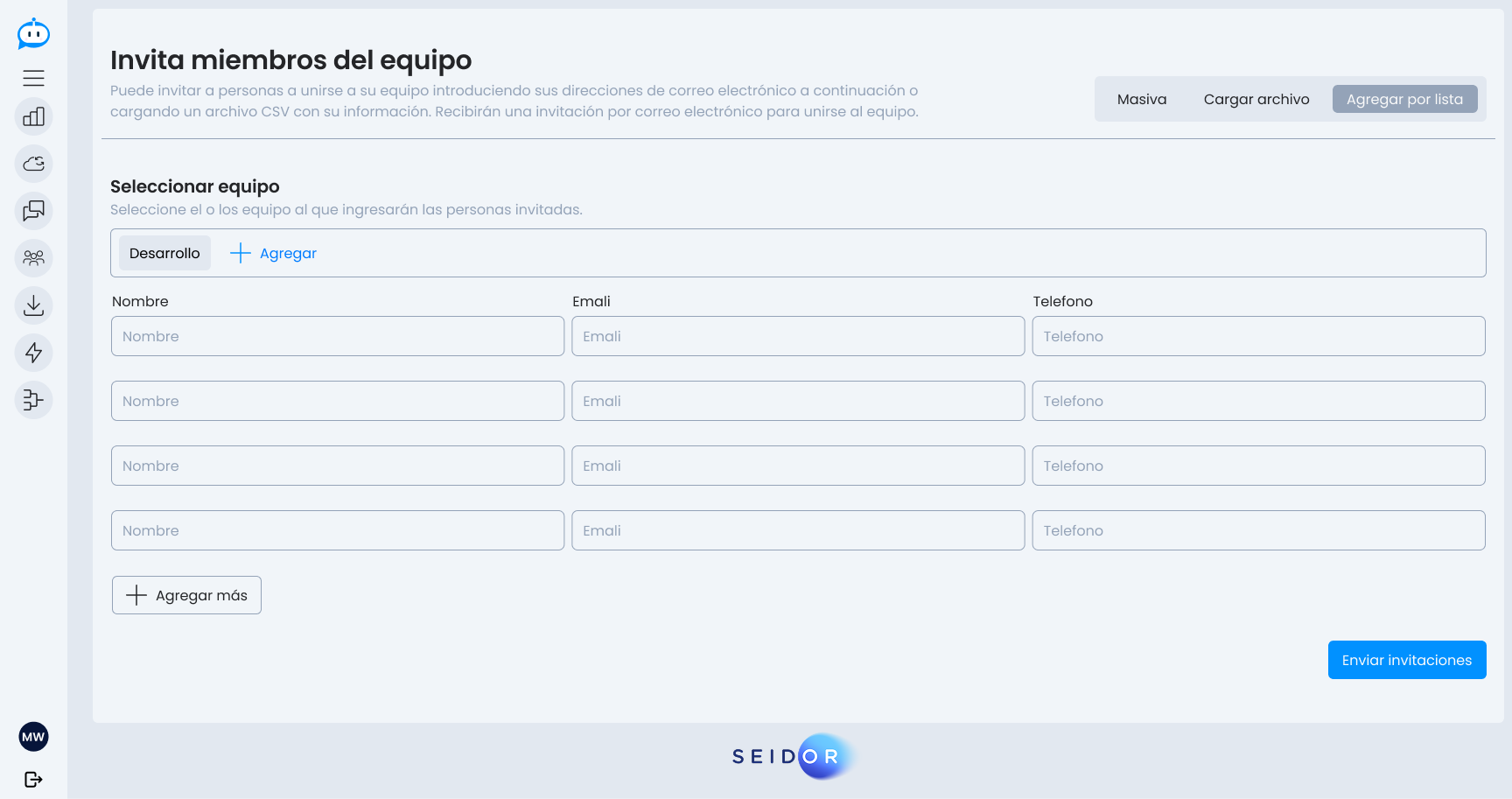
- Select the team(s) the invited people will join.
- Fill in the requested data for each user you wish to invite (Name, Email, and Phone).