Chats
Chats
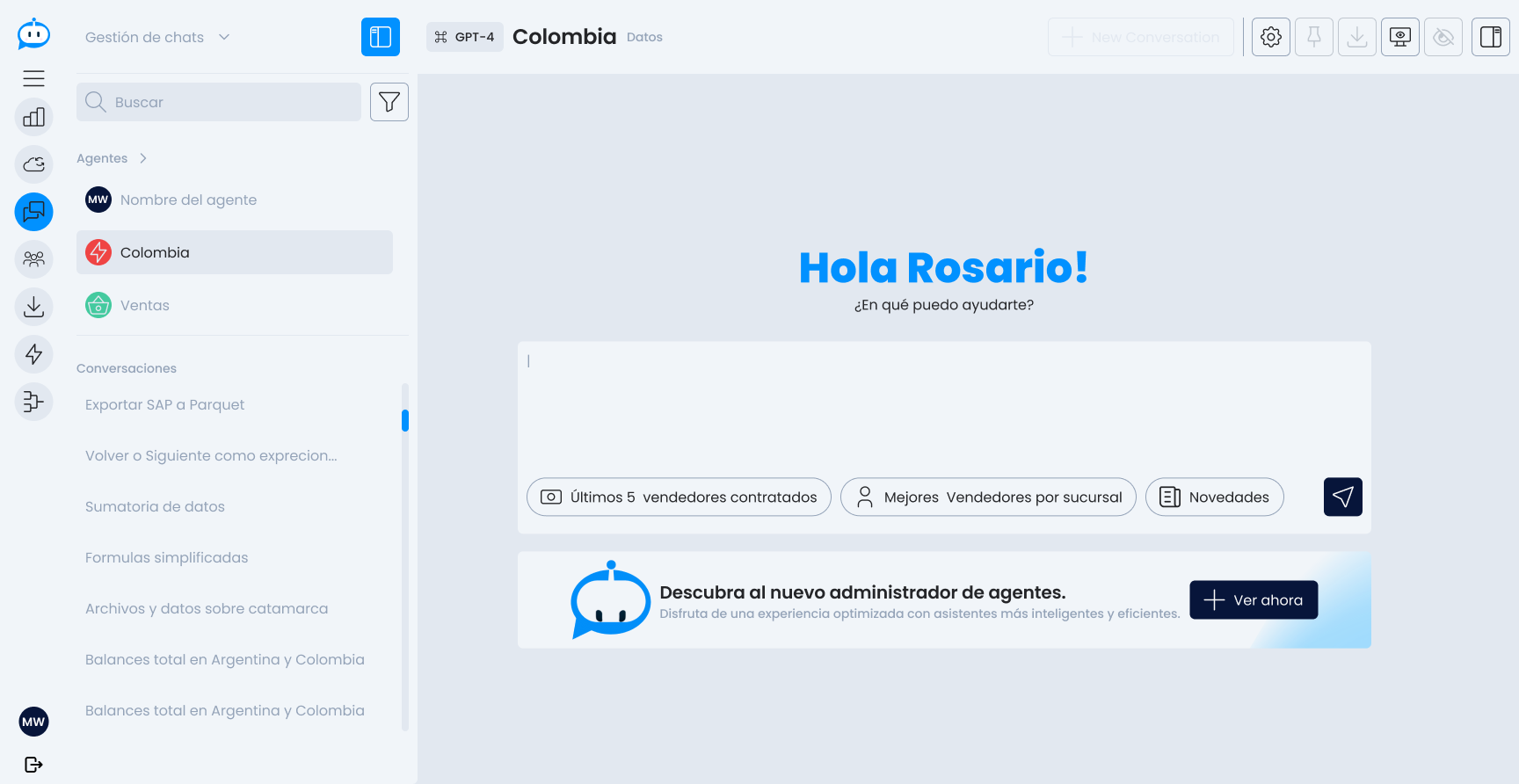
The Chats view allows interaction with the conversational assistants available to the user. From this screen, you can explore past conversations, continue active chats, or start new interactions with different agents.
Sidebar
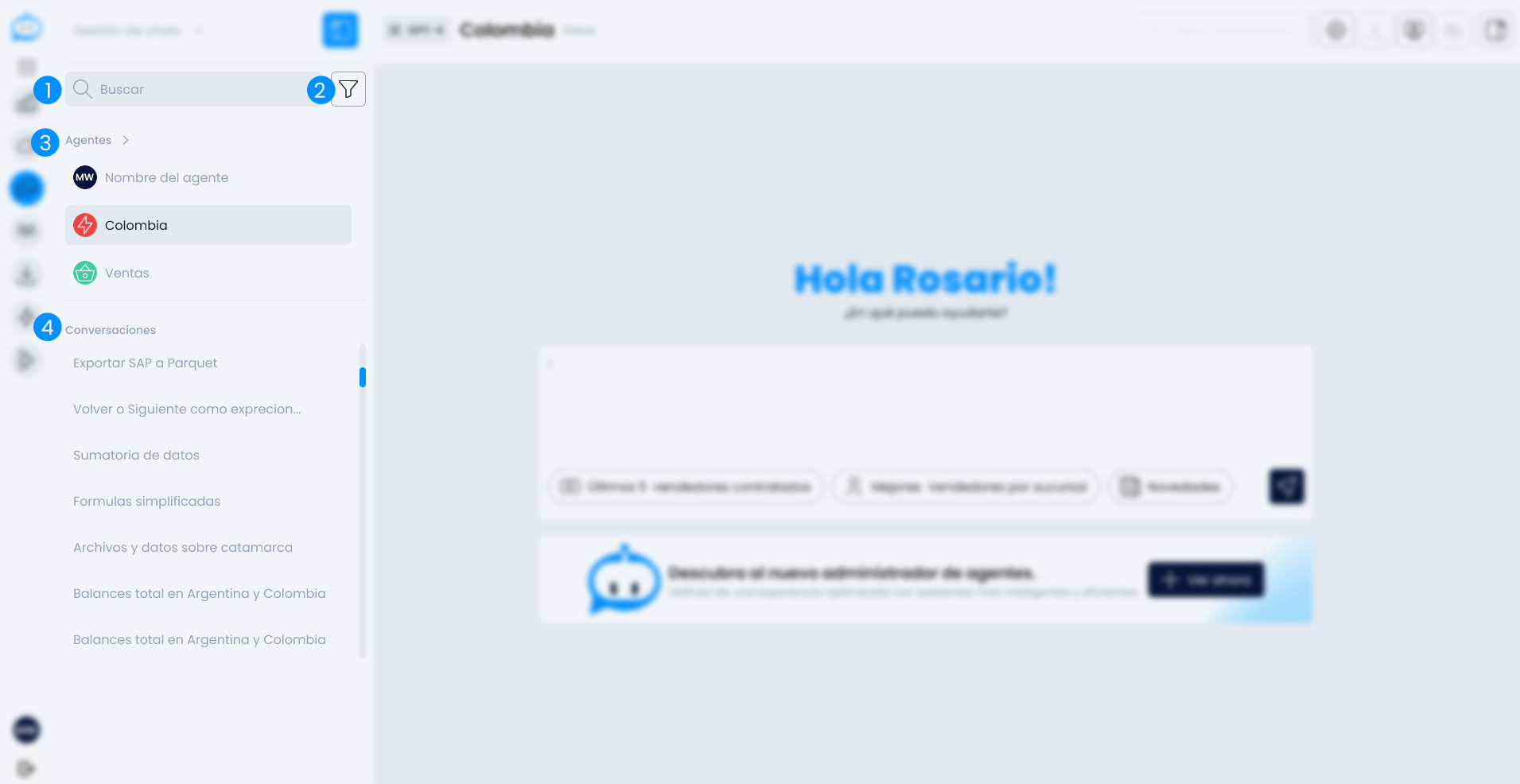 The left column of the screen provides tools to search, filter, and navigate between conversations and agents.
1. Search Bar
Search field that allows finding:
- Agents by name
- Previous conversations by keywords
2. Filters
Advanced options to refine the search based on:
- The Team the agent belongs to
- The Knowledge Source used by the agent
3. Agents
Displays the last 3 agents the user recently interacted with for quick access to their conversations.
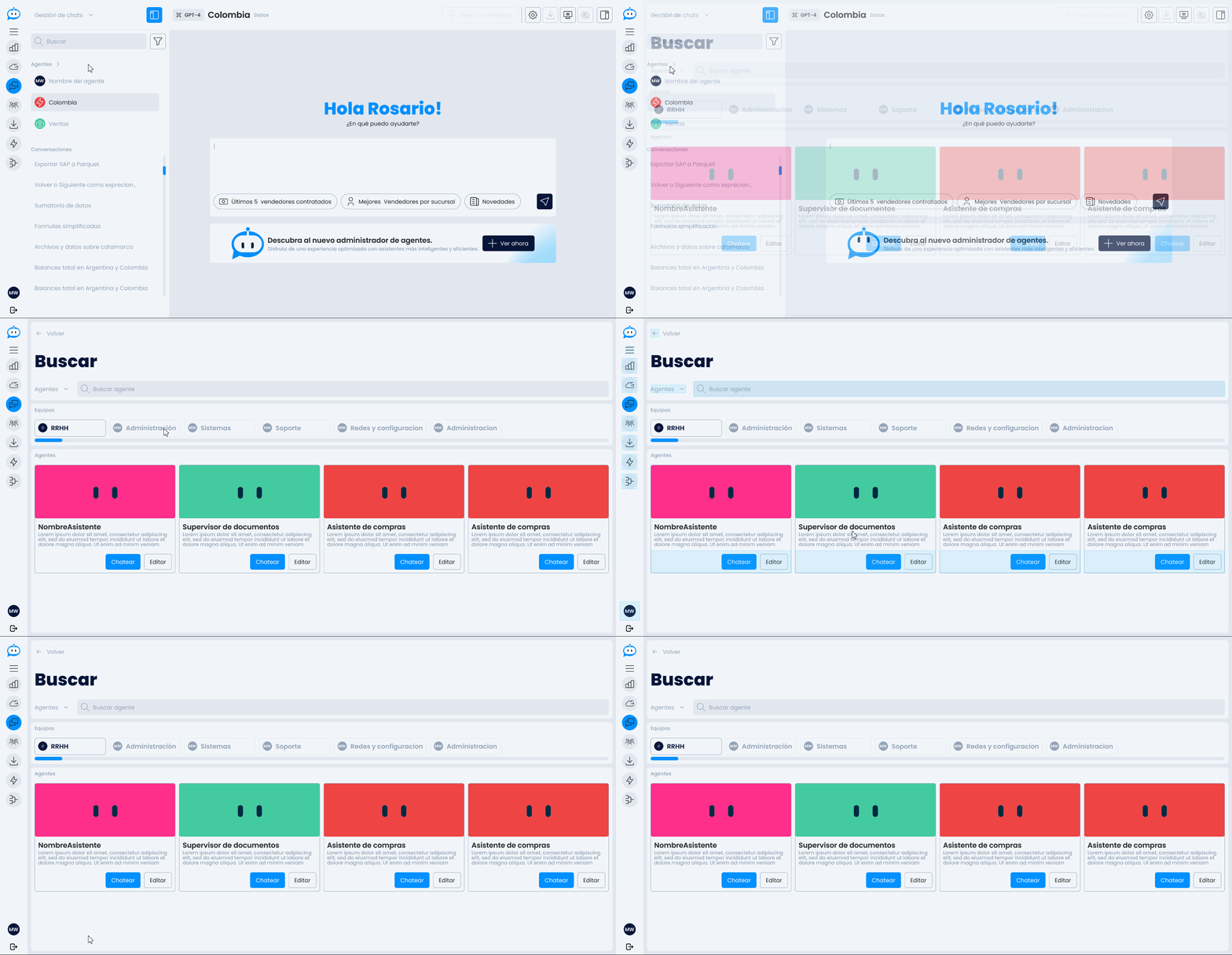
View all agents
In addition to a direct link to the complete list of agents the user has access to within the organization.
4. Conversation List
At the bottom of the sidebar is the history of conversations initiated by the user. From here, it is possible to:
- Continue a previous conversation
- View the complete interaction history
- Delete or archive chats (if enabled)
This view is designed to facilitate fluid access to agents and conversations, improving the daily user experience.
The central part of the Chats view is where active interaction with the selected agent occurs. Here you can send and receive messages, review the conversation context, and access additional tools.
Conversation Header

Left
- Agent Name: indicates the name of the currently selected assistant.
- LLM Model Used: shows which language model is powering the agent's responses (e.g., GPT-4, Claude, etc.).
Right
Includes a series of useful actions for managing the conversation:
- New Conversation: restarts the chat with the same agent from scratch.
- Settings: allows modifying aspects of the agent (configuration parameters, prompt, tone, etc.).
- Download Conversation: exports the current history in a downloadable format.
- Full View: opens the assistant in full screen for a more immersive experience.
- Hide Conversation:
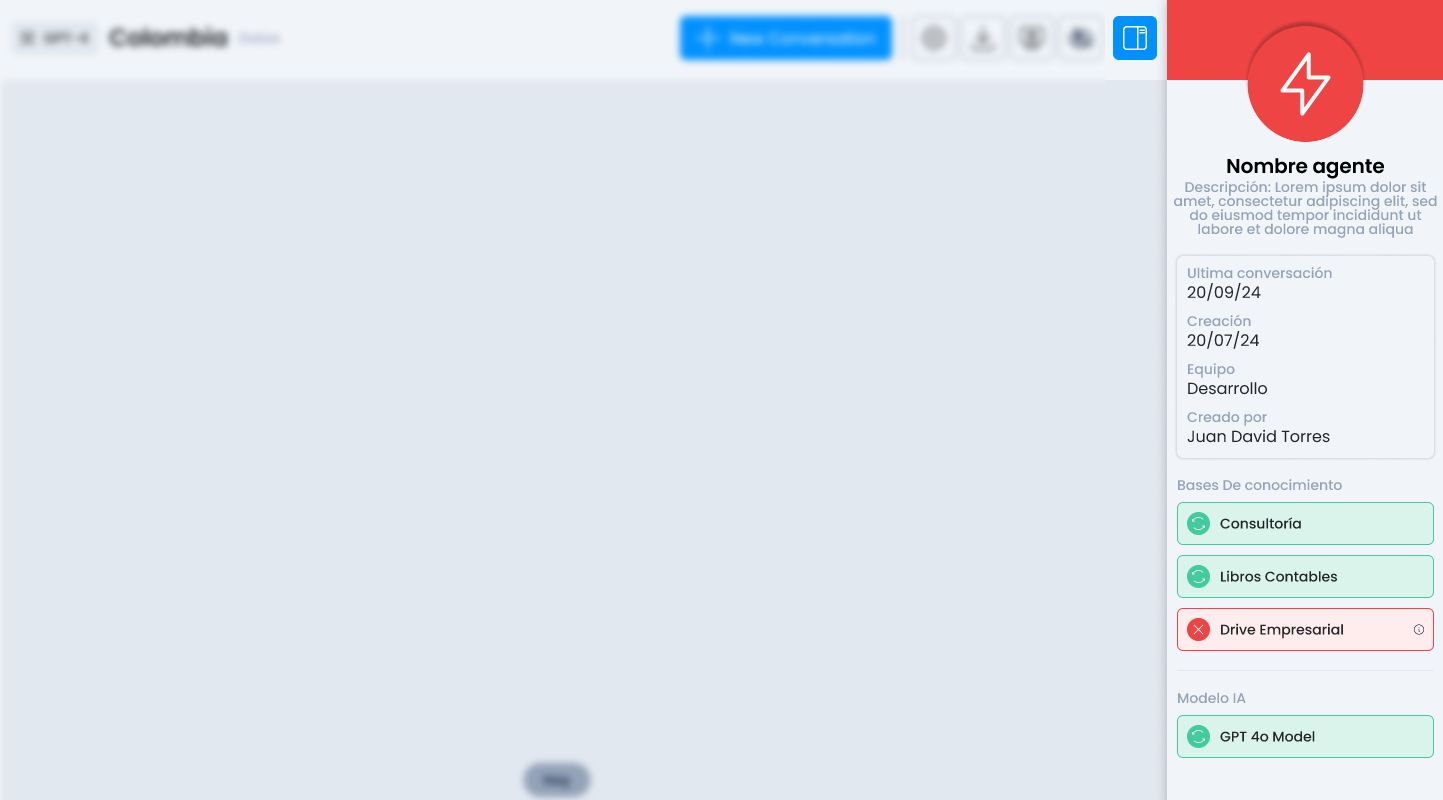
- More Agent Information: expanding this option shows:
- Agent Name
- Description
- Last Conversation
- Creation Date
- Assigned Team
- Created By
- Connected Knowledge Base
- LLM Model Used
This contextual information allows for a better understanding of the selected agent's functionality and purpose.